最近做的这个电视机APP,适配了触控屏,如果要兼容性更好,还得支持遥控操作才行。因为产品架构的原因,要支持遥控器控制的话,需要做兼容处理的就有两处地方了。1、APP的配置地址页面。2、H5应用的页面。
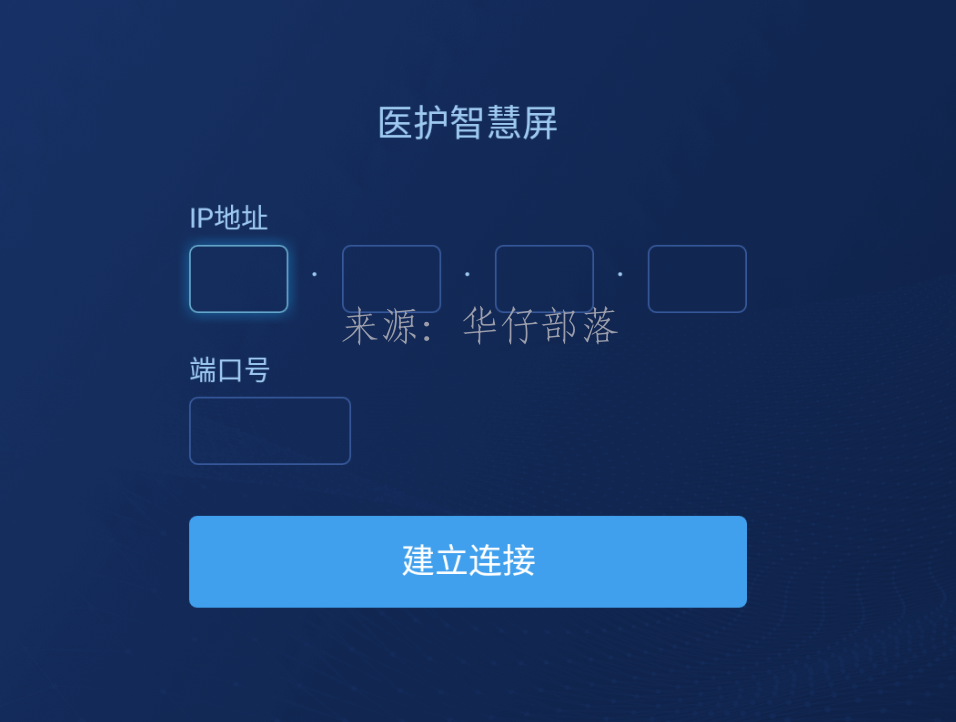
APP的配置页面,使用的nvue编写的,不支持window对象,所以没有办法使用window的事件监听来获取按键编码。但是uni-app本身支持H5+,所以可以通过H5+使用plus.key.addEventListener监听keydown事件就可以了。在nvue页面遥控器控制最麻烦的事情在于聚焦当前选择的内容。好在本应用中,需要进行控制的,只有几个输入框和一个建立连接的按钮。统一设置一个选中下标,根据方向键监听修改下标值,再根据下标值触发对应的输入框的聚焦事件。
实现代码
onShow() {
			const path = getWebPageUrlIpAndPort()
			if (path) {
				this.ip = path.split(':')[0].split('.')
				this.host = path.split(':')[1]
			}
			const keyDownFun = (e) => {
				// 上
				if (e.keyCode === 19) {

					// 下
				} else if (e.keyCode === 20) {

					// 左
				} else if (e.keyCode === 21) {
					if (this.currIndex === 0) {
						// 重置为4
						this.currIndex = 4
						this.$refs[`input4`].focus()
					} else if (0 < this.currIndex && this.currIndex <= 4) {
						this.currIndex--
						this.$refs[`input` + this.currIndex].focus()
					}
					// 右
				} else if (e.keyCode === 22 || e.keyCode === 61) {
					if (this.currIndex === 4) {
						this.currIndex = 0
						this.$refs[`input0`].focus()
					} else if (0 <= this.currIndex && this.currIndex < 4) {
						this.currIndex++
						this.$refs[`input` + this.currIndex].focus()
					}
					// 回车
				} else if (e.keyCode === 66) {
					// 触发
					this.registerDevice()
				}
			}
			this.keyDownFun = keyDownFun
			plus.key.addEventListener("keydown", keyDownFun, false);
			plus.key.addEventListener("menubutton", this.registerDevice)
		}
H5页面的遥控器兼容就出了一点问题,最开始的研究方向就不太对。由于没有经验,需要确认在H5页面中,使用遥控器触发的是否同样是keydown事件,所以特意给windows对象监听了keydown事件。使用遥控器按方向键、确认键,如愿触发了方法,可是遥控器的菜单键和返回键确毫无响应。本来都打算在uni-app页面中监听H5plus的事件,再将消息发送的H5应用中。结果这种方案行不通,在承载h5应用的webview所在nvue页面,使用backbutton事件监听无法生效。同时在方向键的逻辑处理中也陷入了泥沼,原本是想在方向键触发后,给选中的元素添加一个选中效果,结果在添加选中效果时,添加选中效果的元素与当前实际选中的元素不一致。在经过一段时间的研究后,最终解决了这两个问题,一个是查找资料时网友给我的灵感,另一个是走出思维误区后迎刃而解。
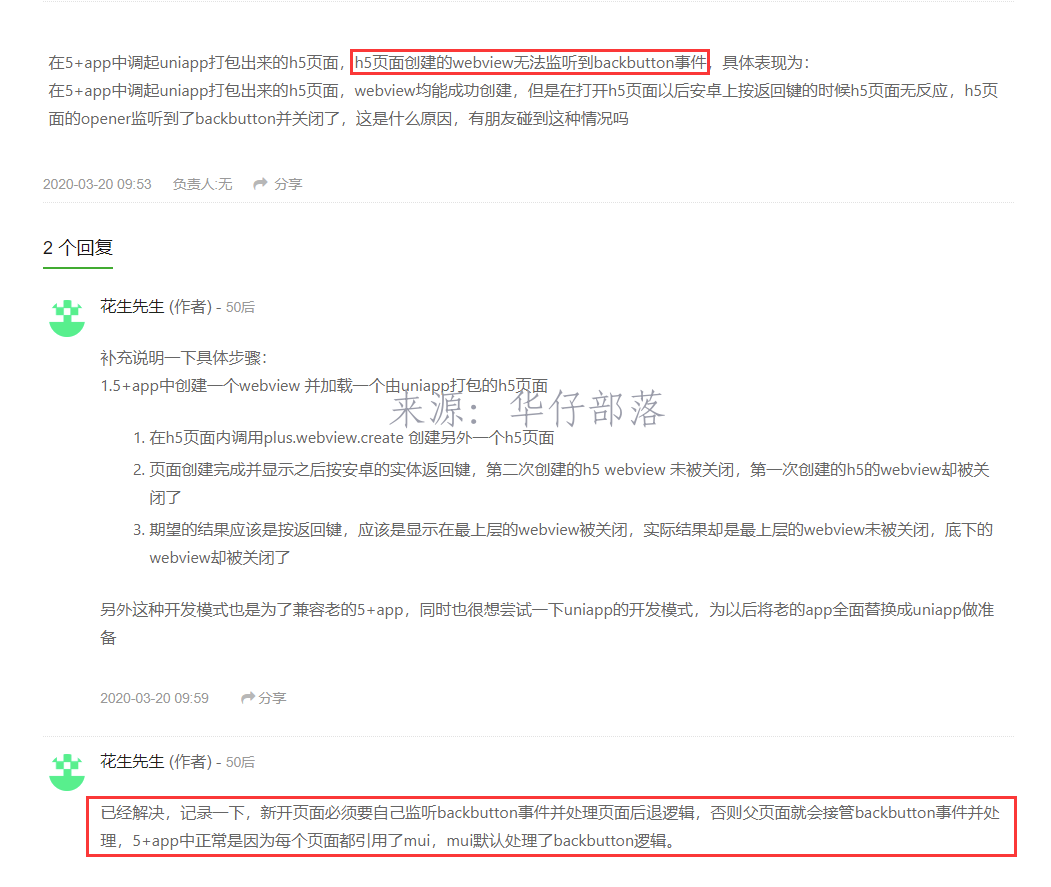
首先来看看第一个问题,返回键和菜单键失效的问题,在DClOUD问答中,网友也是类似的场景,在webview页面无法监听到backbutton事件。解决方案是,新开页面均需要自己监听事件。所以,我猜测就是这种情况。在H5应用中引入了mui,再使用window.plus.key.addEventListener监听backbutton事件,完美解决问题!
代码:
// 监听H5Plus准备事件
window.document.addEventListener('plusready', () => {
  let first = null
  // 监听返回键
  window.plus.key.addEventListener('backbutton', () => {
    const manpowerTable = document.querySelector('.wapper-wrap-mask')
    if (this.$route.name === 'manpowerstructuremanpowerstructure' && manpowerTable.style.display !== 'none') {
      manpowerTable.style.display = 'none'
    } else {
      // 首次按键,提示‘再按一次退出应用’
      if (!first) {
        first = new Date().getTime() // 获取第一次点击的时间戳
        window.plus.nativeUI.toast('再按一次退出应用', {
          duration: 'short'
        })

        // 通过H5+ API 调用Android 上的toast 提示框
        setTimeout(function() {
          first = null
        }, 1000)
      } else {
        if (new Date().getTime() - first < 1000) { // 获取第二次点击的时间戳, 两次之差 小于 1000ms 说明1s点击了两次,
          window.plus.runtime.quit() // 退出应用
        }
      }
    }
  })

  // 监听菜单键
  window.plus.key.addEventListener('menubutton', () => {
  // 当前路由不在 无数据页面
    if (this.$route.path !== '/noContent/noContent') {
    // 可以触发菜单显示操作
      this.$EventBus.$emit('remoteActiveMenu', '')
    }
  }, false)
}, false)
第二个问题,陷入了思维误区,方向键移动,在移动端中,本身就进行元素选中,需要做的仅仅只是更改选中元素的样式,并不需要监听方向键移动事件,再对选中元素进行更改样式,否则就会出现有样式的元素与实际选中元素不相符合的情况。获取选中元素,可以使用window.document.activeElement,在尝试过程我是通过JSON.stringify(window.document.activeElement.outerHTML)方式确定当前选中的元素的。不过这种方式有一定的缺陷,方向键可选元素,我暂时无法控制,没有研究出来方案,也许是可以支持的。所以就会出现在方向键切换时,当前选中的元素并不是我们需要进行选中的元素,这里我通过另一种方案进行处理。在需要支持选中的元素上增加特定的class,在监听聚焦事件方法中,根据选择元素是否存在特定class来决定是否添加选中样式,同时,在监听确定事件中,也根据特定的class来决定是否触发确定逻辑。这样能在一定程度上解决问题。
代码:
// 监听keydown事件
window.document.onkeydown = (e) => {
  const keyCode = e.keyCode
  if (keyCode === 13) {
    // 阻止默认事件
    e.preventDefault()
    // 判断支持遥控按钮
    if (window.document.activeElement.classList.contains('remoteCls')) {
      // 触发点击事件
      window.document.activeElement.click()
    }
  }
}
window.document.addEventListener('focus', (event) => {
  var tags = document.querySelectorAll('.remoteCls')
  for (var i = 0; i < tags.length; i++) {
    tags[i].classList.remove('remoteActive')
  }
  // 包含遥控按钮样式
  if (window.document.activeElement.classList.contains('remoteCls')) {
    // 添加遥控选中效果
    window.document.activeElement.classList.add('remoteActive')
    if (window.document.activeElement.classList.contains('menuButton') ||
        window.document.activeElement.classList.contains('switchButton')) {
      // 关闭定时器1
      this.$EventBus.$emit('closeTimer', 1)
      // 关闭定时器2
      this.$EventBus.$emit('closeTimer', 2)
    }
  }
}, true)

发表评论